
Weather Station Guide
Weather Station Not Uploading to Weather Underground
Find where your readings stop, check the right upload settings for your system, and get your personal weather station reporting again.
Start with the latest observation time
If your weather station is not uploading to Weather Underground, compare fresh outdoor readings at the receiver, the manufacturer’s online dashboard, and your exact Weather Underground station page. Fix the first stale link. When the manufacturer’s cloud is current but Weather Underground is stale, check the WU sharing setting and station ID/key before resetting hardware.
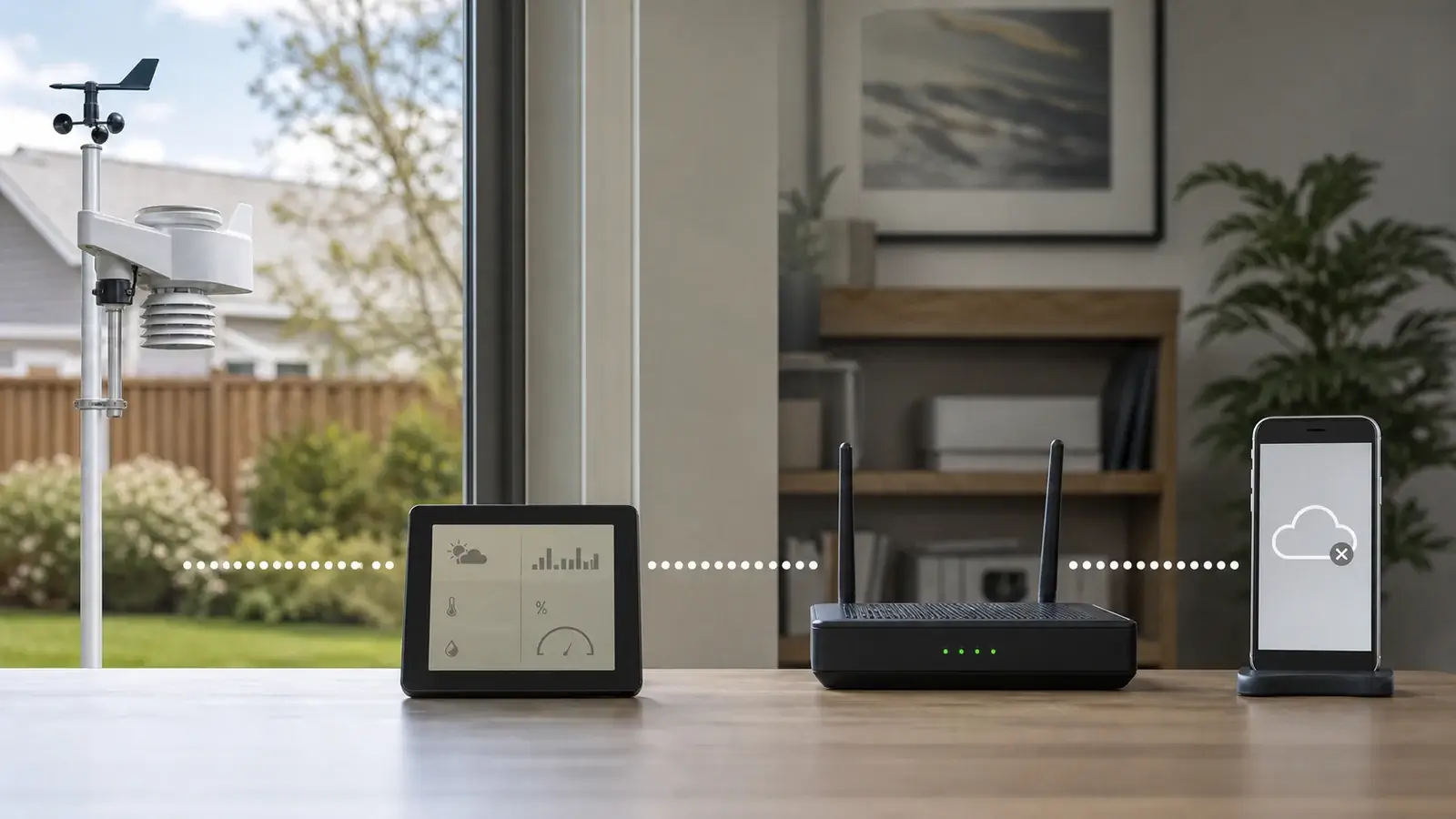
Find the last place with fresh readings
Open the station you own, not a city forecast or a nearby station chosen by the app. Compare the observation timestamp, date, and time zone. A page you opened a minute ago can still contain yesterday’s readings. Steady temperature or zero rainfall alone does not prove a stalled upload.
For a system without a display, use its receiver’s local status page when available. A phone app showing cached cloud data is not proof that the sensor-to-receiver link works right now.
Read the timestamps, then narrow the search
Illustrative example • checked at 2:10 p.m. • same date and time zone
Local receiver
2:10 p.m.
Current observation
Manufacturer cloud
2:09 p.m.
Recent observation
Weather Underground
Yesterday
Stale observation
Investigate the WU connection next. Check sharing, station identity, and service status before changing sensor placement.
| What you find | What to check next |
|---|---|
| Outdoor data are stale at the receiver | Check sensor power, pairing, and radio reception. Start with console not receiving the outdoor sensor. |
| Receiver is current, manufacturer’s cloud is stale | Check the uploading device’s power, Wi-Fi or Ethernet, internet access, and manufacturer account. A separate display may receive independently of the upload gateway. |
| Manufacturer’s cloud is current, WU is stale | Check WU sharing, the selected sensor, station ID/key, current integration instructions, and service notices. |
| WU station page is current, map or app is missing it | Uploads are reaching that station page. Move to map visibility checks. |
Check where your system sends data to WU
The outdoor sensor usually transmits to a console or gateway first. The next step depends on the exact hardware and software. A Wi-Fi symbol only establishes part of the connection, and a working manufacturer dashboard does not automatically enable Weather Underground sharing.
Two common upload routes
Manufacturer cloud route
Sensor + receiver
Home internet
Manufacturer cloudCheck WU sharing here
Weather Underground
Direct uploader route
Outdoor sensor
Console, gateway, or PCCheck WU sharing here
Home internet
Weather Underground
Ambient Weather
The current WS-5000 manual directs WU sharing through Ambient Weather Network (AWN). With fresh AWN observations, open Devices, select the WU sharing icon for that device, and connect using the WU station ID/key. Older consoles and software can use different routes. Follow your model’s current instructions before changing a custom server field.
Davis WeatherLink
The Davis sharing guide now uses Share & Uploads → Upload → Add Upload on WeatherLink.com. Select Weather Underground and enter the correct station ID/key. Older help pages call this Manage Devices → Uploads. Davis documents 15-minute third-party uploads for a basic account, with more frequent options for Pro/Pro+. Check the expected interval before treating a short delay as a fault.
Tempest
In the Tempest web app, go to Settings → Stations → your station → Public Data → Weather Underground. Enter the WU station ID/key. Tempest’s current FAQ advises allowing at least 30 minutes to an hour for initial WU publication, with longer delays possible.
AcuRite
Identify whether your feed uses a direct Wi-Fi display, PC Connect, My AcuRite, or AcuRite NOW. The current AcuRite NOW+ sharing instructions require a NOW+ subscription and activation pass key before entering the WU station ID/key. This is specific to the NOW+ route, not a universal WU fee for every AcuRite uploader.
AcuRite migration matters. As of September 9, 2026, AcuRite says My AcuRite remains available while migration and app issues are resolved. Use its current migration guidance if your old sharing screen has changed. A working legacy feed should not be deleted merely because another app uses different controls.
For Ecowitt, Sainlogic, and other systems, match the instructions to the console or gateway model, not just the outdoor sensor’s name. Use the built-in WU destination when the manual provides one. Avoid copying server addresses, ports, or app instructions from an unrelated station.
Use the station ID and upload key, not the login password
Open Weather Underground’s My Devices page while signed in and select the intended personal weather station (PWS). Registration creates a station record. The uploader still needs the matching credentials and sharing enabled.
Station ID
Identifies the public station record. Match the ID in your uploader to the station page you are checking.
Station key / upload key
Authorizes the upload to that record. Keep it private. An upload field labeled Password may require this key.
Account password
Signs you into the WU website. It is separate from the station’s upload key.
API key or NOW+ pass key
Serves a different integration or subscription function. Neither substitutes for the WU station key.
Check case and remove leading or trailing spaces. Compare look-alike characters such as O and 0 or I, l, and 1. AcuRite’s WU-only troubleshooting guide also emphasizes choosing the correct outdoor sensor in the sharing profile.
Replacing hardware at the same station? Preserve the existing WU record when the manufacturer’s replacement procedure supports it. For example, Tempest’s account guide tells owners to relink a replacement station with the same WU ID and key. A move to a different physical location needs separate registration guidance. Do not merge unrelated locations into one history.
Fix one layer, then verify the result
Restore reliable power and connectivity
Check the uploading receiver’s normal power adapter. Some Wi-Fi displays keep local functions on backup batteries while online functions stop. After a router replacement or Wi-Fi password change, reconnect that receiver using its own setup procedure. Use the supported Wi-Fi band, often 2.4 GHz, when its manual requires it.Check the active uploader
Confirm sharing is enabled and assigned to the right device. If computer software sends your readings, keep the computer awake, online, and running that software. AcuRite documents this requirement for PC Connect. A lit display does not prove that its connected PC is uploading.Save the matching WU credentials
Use the correct station ID/key pair in the documented sharing screen. Avoid enabling a second uploader for the same record while testing the first. Record the change and time so you can tell which action helped.Allow the documented startup interval
Keep the system powered and connected, then reopen your exact WU station dashboard. Check whether the latest observation advances across several expected updates. The startup wait, sensor sampling interval, cloud upload interval, and map refresh are different things.Escalate with evidence if it remains stale
Record the receiver model, app or software, last good WU observation with time zone, current manufacturer-cloud timestamp, and changes already tried. Check current vendor notices. If multiple stations are affected, a service incident is possible, but that observation alone does not prove a WU outage.
Keep a reset as a later step. Save your calibration, network, pairing, and station settings before following a model-specific reset procedure. Factory resets and deleting a PWS record can create extra work while leaving a service problem unresolved.
Uploading successfully but missing from the map?
A current observation on your WU station dashboard is stronger evidence of successful delivery than a map marker or an app’s summary badge. Ambient’s map-visibility guidance describes delays after registration or an offline period, quality-control effects, and WU website problems. Its suggested day-or-two map delay is guidance, not a guaranteed deadline.
Check the station’s location, elevation, time zone, and readings. Compare like-for-like pressure and rainfall fields before deciding a value is wrong. Our station versus sea-level pressure guide and rain rate and rainfall totals guide explain those differences.
Do not change calibration merely to match a neighbor or force a station onto the map. Investigate the measurement and siting first with the weather station accuracy guide. WU’s internal quality-control decisions cannot be diagnosed from a missing marker alone.
If the dashboard is current but public visibility remains wrong, use Weather Underground’s support form. Include the public station ID and redacted screenshots. Keep station keys, account passwords, and subscription pass keys out of screenshots and public support posts.
Frequently asked questions
Why does my console work while Weather Underground is offline?
The console can receive the outdoor sensor without a working internet upload. Check the separate gateway if your system uses one, then the manufacturer’s cloud and WU sharing settings.
Do I need a Weather Underground API key to upload?
Normal manufacturer-supported PWS upload setup uses the WU station ID and station key. An API key used by a separate application is a different credential. Follow your uploader’s specific instructions.
Will missing data return after the internet reconnects?
Backfill depends on the device, storage, software, and destination. Local history or a restored manufacturer dashboard does not guarantee that WU will recover the same gaps. Check the affected period on WU after live observations resume.
Should I delete my WU station and start again?
Check the upload route and ID/key first. Preserve a working station record when the supported repair or hardware replacement allows it. Create a replacement record only when the applicable registration or support procedure calls for one.
Sources and further reading
Model-specific instructions are linked beside the relevant checks above. These references explain the main diagnostic distinctions.
AcuRite: offline on Weather Underground only covers station credentials and selecting the correct sensor.
Ambient Weather: reporting but absent from the app or map distinguishes uploads from map visibility.
Weather Underground’s PWS network overview explains the network and station dashboards.