
Weather Station Console Not Receiving Outdoor Sensor Data
Missing outdoor readings can come from sensor power, a lost pairing, the wrong channel, radio range, interference, console state, or an entirely separate internet upload failure. Find the failed link before resetting everything.
If the console shows indoor data but outdoor values are blank or stale, start with the outdoor sensor’s power and transmit indicator, correct channel or sensor ID, and the manual’s search or pairing mode. Bench-test the sensor near the console before blaming advertised range. If the console has fresh outdoor readings but the app is stale, the radio link is working and the fault is in Wi-Fi, the gateway, the account, or the upload service instead.
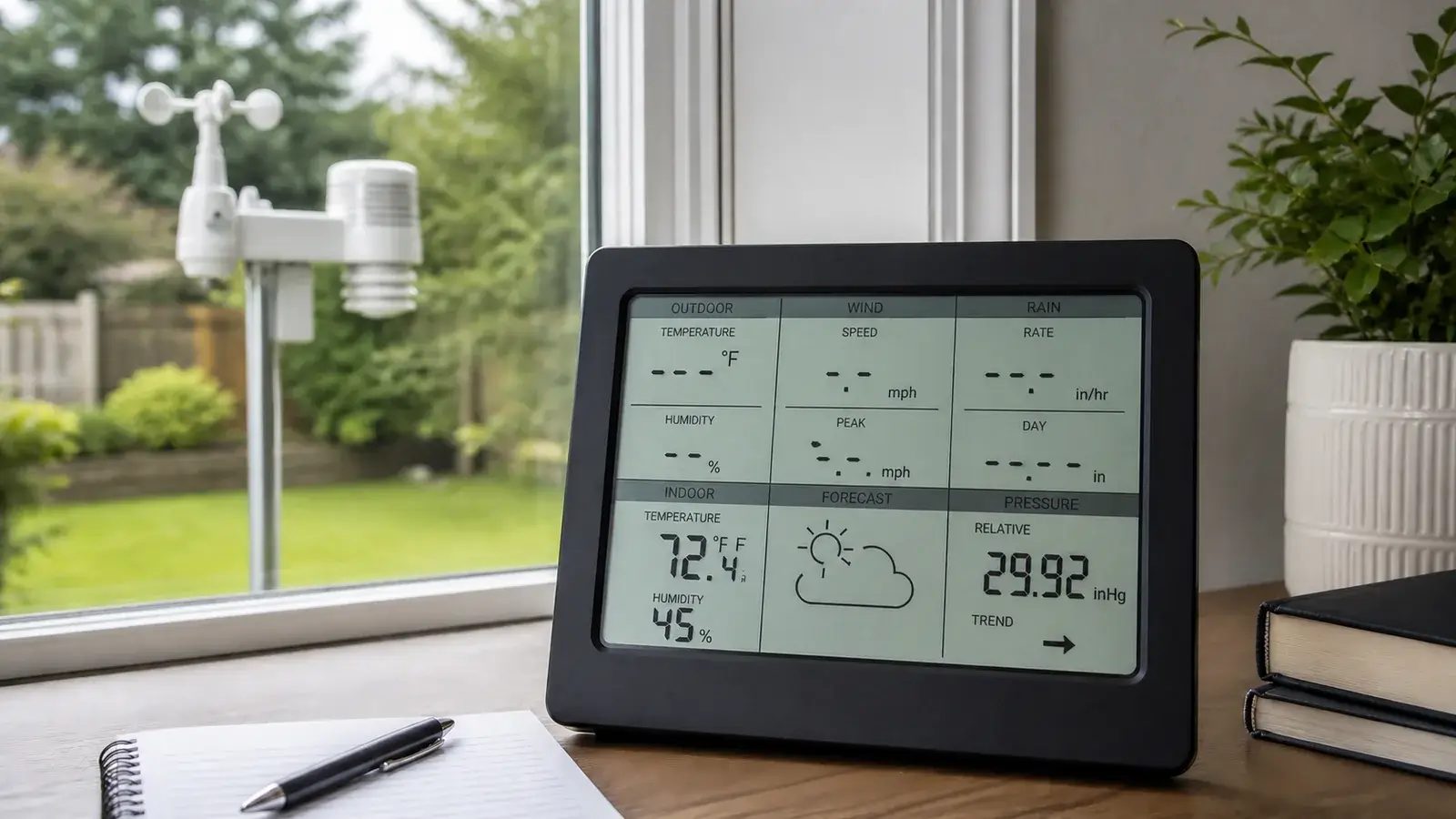
Identify which connection actually failed
A home weather station commonly uses two separate wireless paths: a low-power radio link from outdoor sensors to a console or gateway, and Wi-Fi or Ethernet from that receiver to a router and online service. Resetting the router cannot repair a dead outdoor transmitter, and replacing outdoor batteries cannot correct an invalid cloud password.
Focus first on outdoor power, channel or sensor ID, search mode, radio range, interference, and receiver compatibility. Check whether all outdoor fields or only one sensor family disappeared.
The sensor-to-console link is working. Focus on console or gateway power, Wi-Fi/Ethernet, time and account settings, station ID/key, firmware, and the service status.
Intermittent power, marginal range, metal barriers, interference, moisture, or a loose connection are more likely than a simple channel mismatch.
Check its battery, assigned channel, maximum supported sensor count, and whether the console is already using that channel for a different device.
A safe recovery sequence
Write down channel assignments, calibration offsets, network credentials, and the last good timestamp before making changes. Then follow this order.
Check timestamps and stale-data behavior
Some consoles retain the last value for several minutes before showing dashes. Confirm which fields stopped and exactly when. A single stale timestamp can reveal whether the entire array or one sensor failed.
Inspect outdoor power
Use the battery type and polarity approved by the manual. Clean only accessible contacts as directed, close seals correctly, and look for a transmit LED or status indication. Solar-assisted arrays may still depend on backup cells or stored energy.
Confirm channel, ID, and compatibility
Match physical channel switches and console selections. For automatic IDs, remove duplicate transmitters from the bench area. A sensor that uses the right frequency may still be incompatible with a different console family or radio region.
Bring the sensor and console close together
Perform a temporary line-of-sight bench test at the distance recommended by the manual—not touching each other. If it works nearby, the installed path is the problem. If it fails nearby, continue with pairing and power checks.
Use the exact search or resync procedure
Some products require the sensor to be powered first. Others require a console search, reset button, or channel scan. Follow the sequence for the exact model and wait through the documented acquisition period.
Restore the installation one change at a time
Move the console back, then restore walls, windows, appliances, and normal mounting conditions. This isolates the barrier or source that turns a strong bench connection into an unreliable installed link.
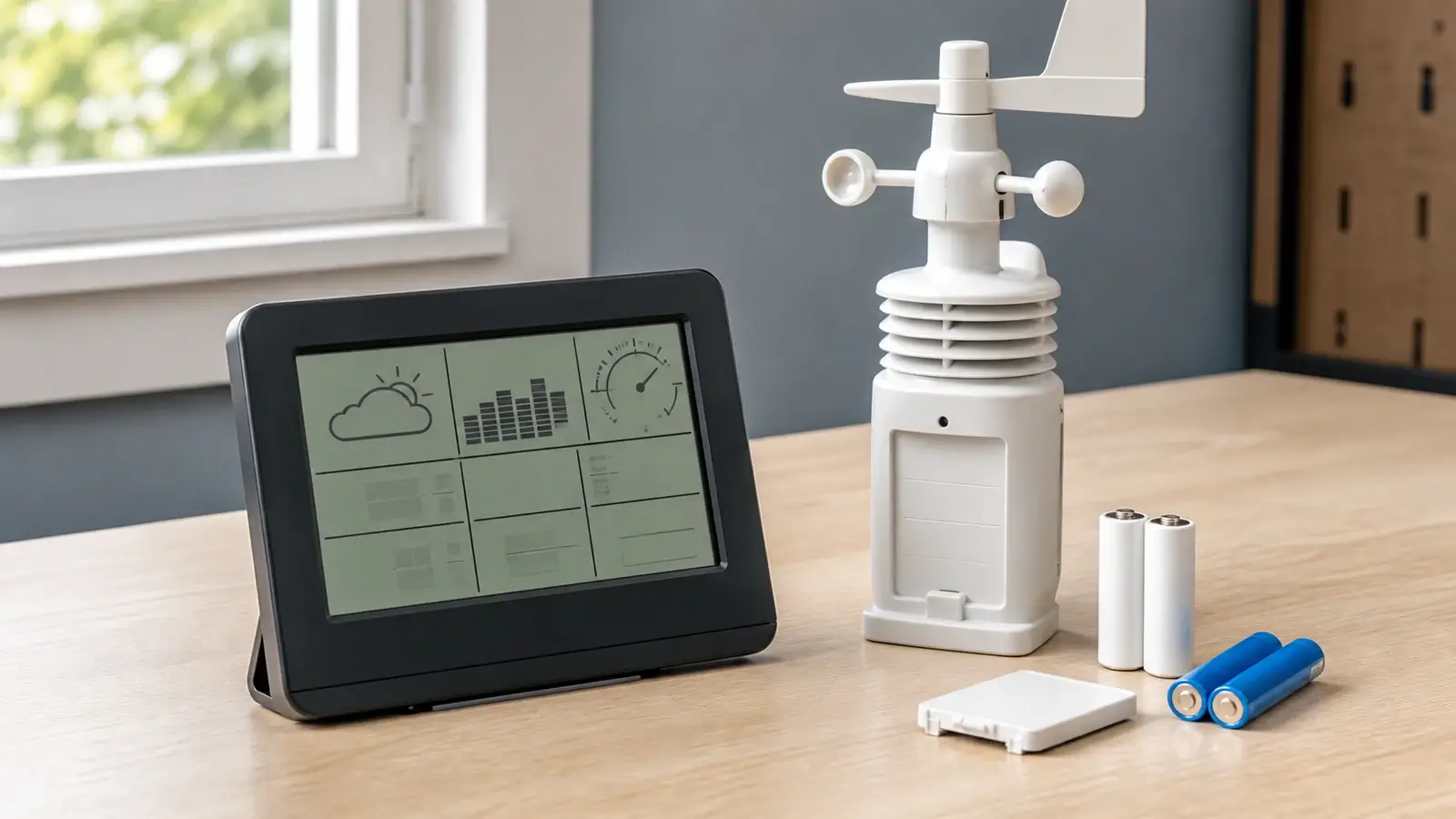
Symptom-to-cause guide
| Symptom | Check next | Why |
|---|---|---|
| All outdoor fields show dashes | Main array power, transmit indicator, search/pairing, console receiver | Shared failure points affect the whole sensor suite. |
| Only temperature/humidity is missing | Separate sensor power or channel, model sensor map | Some arrays and add-ons transmit as separate sensor families. |
| Works beside console, fails outside | Distance, walls, metal, low-emissivity glass, elevation, interference | The hardware can pair. The installed radio path is marginal. |
| Fails after cold weather begins | Battery chemistry allowed by manual, voltage under cold load, moisture | Cold reduces useful battery performance and can expose weak contacts. |
| Fails after adding another sensor | Duplicate channel, sensor limit, unsupported model, ID collision | The receiver may not distinguish or support both devices. |
| Console current, website offline | Receiver power, router path, credentials, upload configuration, service status | The outdoor radio link has already succeeded. |
Why advertised range is not your indoor range
A weather station’s advertised transmission range is usually a favorable open-air or line-of-sight distance. Building materials and radio geometry determine practical range. Metal siding, foil insulation, concrete reinforcement, appliances, utility rooms, and some low-emissivity windows can attenuate the signal. A receiver placed low behind electronics may perform worse than one several feet away and higher.
Do not immediately buy a repeater. First rotate or relocate the console a short distance, separate it from routers and large electronics, reduce metal barriers, and retest. A small position change can alter a marginal radio path. A repeater must match the product family, frequency or radio region, and supported sensor types.
- Keep the console powered as the manual requires for full receiving and network functions.
- Do not enclose the outdoor transmitter in metal or add an unapproved weatherproof box around its antenna area.
- Check whether a new appliance, LED power supply, router, alarm device, or construction change coincided with the loss.
- Document signal-strength or reception indicators when the console provides them.
When the sensor or console may have failed
Hardware failure becomes more plausible when fresh approved batteries and clean contacts produce no transmit indication, the sensor cannot pair during a close bench test, physical inspection shows corrosion or water intrusion, or the same compatible sensor works with the console while the suspect sensor does not. Likewise, a receiver problem is more plausible when multiple known-compatible transmitters fail nearby.
Before ordering, verify the full model number, sensor model, radio region, channel rules, and console firmware requirements. Similar-looking sensors are not automatically compatible. If the unit is under warranty, stop before opening sealed housings or making modifications that the manufacturer does not authorize.
Frequently asked questions
Why does my weather station display show dashes for the outdoor temperature?
Dashes usually mean no recent valid transmission. Check the outdoor sensor’s power and transmit indicator, channel or ID, console search mode, and a close-range bench test using the exact manual.
Should I replace batteries in the sensor and console?
Replace only with the type the manufacturer permits and preserve settings first. Many consoles need external power for full features even when batteries provide backup.
Does Wi-Fi connect the outdoor sensor to the console?
That is usually unnecessary. Many consumer stations use a separate low-power radio link outdoors and Wi-Fi only from the console or gateway to the router. Check your model’s architecture.
How long should it take an outdoor sensor to reconnect?
Acquisition time varies by model and update interval. Use the manual’s pairing sequence and wait period rather than repeatedly resetting during a valid search.
Sources and further reading
These primary and manufacturer references support the definitions, diagnostic steps, and limitations in this guide.
Ambient Weather sensor-array reset and communication support — manufacturer-specific example of power, transmit indicator, reset, and resynchronization checks
Ecowitt temperature/humidity missing-data guidance — separating one missing sensor from complete outdoor-data loss
La Crosse Technology no outdoor temperature/humidity readings — model-specific search behavior and stale-data timing
Model controls and reset sequences vary. Use the current manual for your exact console, sensor, hardware revision, and radio region before changing calibration, power, pairing, or network settings.